Appearance
Settings Window & Data Storage
Workspace Settings Window
Open the Workspace Settings window from the settings button (⚙) on the overlay, or from Window → TKGizmoLab → Scene View Workspace Settings.
The window has three tabs:
| Tab | What it covers |
|---|---|
| Workspaces | Managing your saved Workspaces |
| Rules | Isolate auto-switch rules |
| General | Options that are not tied to a particular Workspace |
Workspaces Tab
Lists every saved Workspace. The active Workspace is shown in bold.
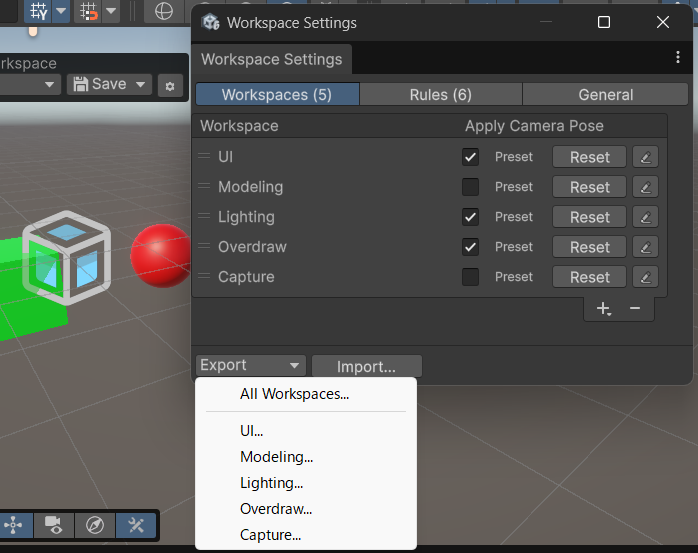
| Element | Role |
|---|---|
| Drag handle (≡) | Reorders the list. The overlay dropdown and the rule target dropdowns follow this order. |
| Apply Camera Pose | Whether switching to the Workspace moves the camera. See below. |
| Preset / Reset | Shown for Workspaces named after a built-in preset. Reset returns the Workspace to the preset defaults. |
| Rename (pencil) | Renames the Workspace. Rules that target it and the active selection follow the new name. |
| + | Save New... saves the current Scene View as a new Workspace. Add Preset re-creates a built-in preset you deleted. |
| − | Deletes the selected Workspace. Deleting the active Workspace returns the Scene View to the No Workspace state. |
| Export / Import | Exports or imports Workspaces as JSON. See Export / Import. |
When several Scene Views are open, Save New and Reset in this window use the Scene View you focused last.
Apply Camera Pose
- On — Switching to the Workspace restores the saved pivot position, rotation, and zoom, so the Workspace also works as a camera bookmark.
- Off — The Workspace only switches settings, and the camera stays where you are. Turn this off for Workspaces used by Isolate auto-switch so the view stays on the isolated object.
2D / 3D mode and the projection are always applied, whatever this option is set to. When you release a Workspace, by choosing No Workspace or by exiting Isolation view, the camera is restored only if that Workspace had this option on.
You can also set this option when you save a Workspace with Save → Save New. The built-in presets start with it off, and you can change it like any other Workspace.
Rules Tab
Add, reorder, and edit the rules that apply a Workspace when you enter Isolation view. See Isolate Auto-Switch Rules.
General Tab
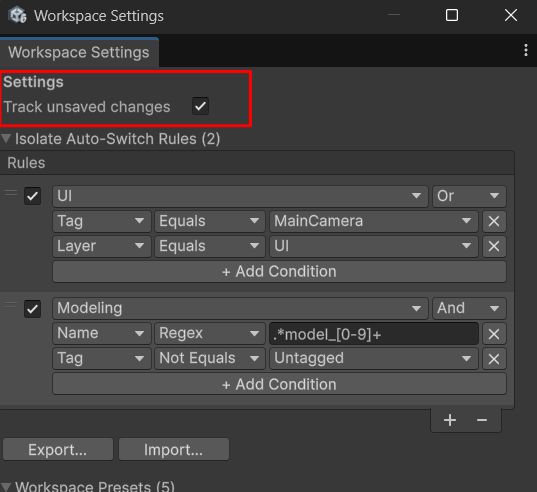
- Track unsaved changes — Periodically checks whether the Scene View differs from the saved Workspace and shows the
*marker. Turn this off to remove the cost of this check.
Data Storage
Workspaces, rules, and the active Workspace selection are saved in your project's UserSettings/SceneViewWorkspace/ folder.
- Your original Scene View setup, captured the first time you apply a Workspace, is also stored here. It is kept across Editor restarts, but deleting this folder loses it.
- To share Workspaces or rules with others, use Export / Import.
Using Git?
Unity's standard .gitignore excludes /UserSettings/. If your project uses an older template that does not, add /UserSettings/ to your .gitignore so teammates' settings do not conflict.