Appearance
Isolate Auto-Switch Rules
When you enter Isolation view (select a GameObject in the Hierarchy and press Shift + H), Scene View Workspace automatically switches to the Workspace whose rule matches the target object.
How to Configure
Open the Workspace Settings window from the settings button (⚙) on the overlay, or from Window → TKGizmoLab → Scene View Workspace Settings. Add, reorder, and edit rules on the Rules tab.
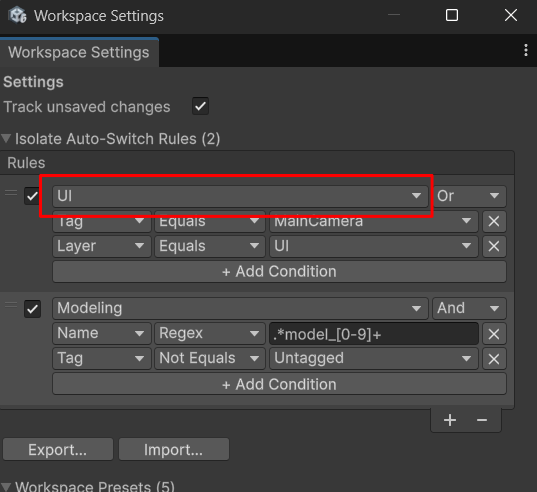
For each rule, select the Workspace to switch to when its conditions match.
TIP
Turn off Apply Camera Pose for the Workspaces your rules switch to, so the view stays on the isolated object.
Press + Add Condition to add a condition.
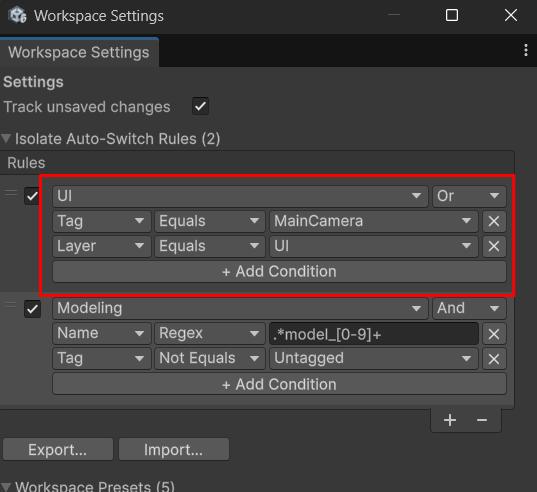
When a rule has multiple conditions, choose how they are combined:
- And: the rule matches when all conditions are satisfied.
- Or: the rule matches when any one condition is satisfied.
Condition Types
Name
Evaluates the GameObject's name.
| Operator | Matches when |
|---|---|
| Equals | the entered text is equal to the GameObject name. |
| NotEquals | the entered text is not equal to the GameObject name. |
| Contains | the GameObject name contains the entered text. |
| StartsWith | the GameObject name starts with the entered text. |
| EndsWith | the GameObject name ends with the entered text. |
| Regex | the GameObject name matches the entered text as a regular expression. |
Tag
Evaluates the tag set on the GameObject.
| Operator | Matches when |
|---|---|
| Equals | the selected tag is set on the GameObject. |
| NotEquals | the selected tag is not set on the GameObject. |
Layer
Evaluates the layer set on the GameObject.
| Operator | Matches when |
|---|---|
| Equals | the selected layer is set on the GameObject. |
| NotEquals | the selected layer is not set on the GameObject. |
Rule Order
Rules are checked from top to bottom. Once a rule matches, the rules below it are not checked.
- Drag and drop to reorder the list.
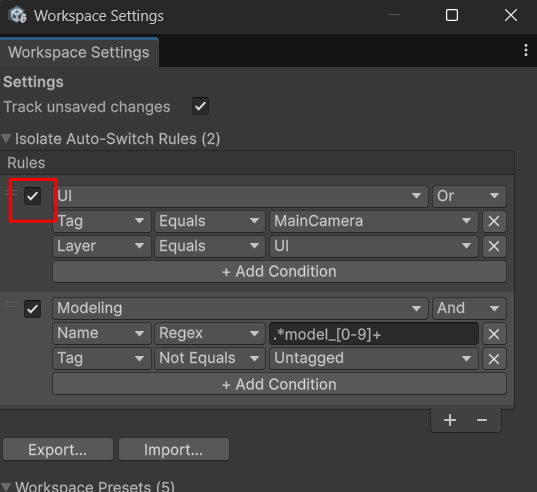
- Uncheck the box to the left of a rule to disable it.
Export / Import
Rules can be exported and imported as JSON. See Export / Import.